
Adora's Growth Buddy (Custom GPT + Guide)
Adora's Growth Buddy (Custom GPT + Guide)
What you need to do
Tools
- Link to the Growth Buddy GPT
- Optional: Install the GoFullPage browser extension to capture full-page screenshots
Why full-page captures matter
By capturing the full page layout in high resolution, Growth Buddy can understand the complete context of each screen, where bottlenecks appear, and what is distracting from the main action.
If you only capture a small portion of a hero section, you miss where attention is actually going. You cannot see competing elements, visual noise, or confusing navigation.
With full-page captures, the critique engine can see the entire journey, not just a cropped slice, and give much sharper, more reliable recommendations.
How to download and use GoFullPage
Step 1: Download GoFullPage
Install the GoFullPage extension from your browser’s extension store.
Step 2: Pin the extension
Open your browser extensions menu and pin GoFullPage so its icon is always visible in your toolbar.
Step 3: Capture the page
Navigate to the page you want to capture, then click the GoFullPage icon. Wait a few seconds while it scrolls and captures the entire page.
Step 4: Download as an image
After the capture is complete, GoFullPage will open a new tab with the full-page screenshot.
Click Download PNG to save a full-length image of the page. This is the image you will upload into the Growth Buddy critique engine.
Example full-page capture
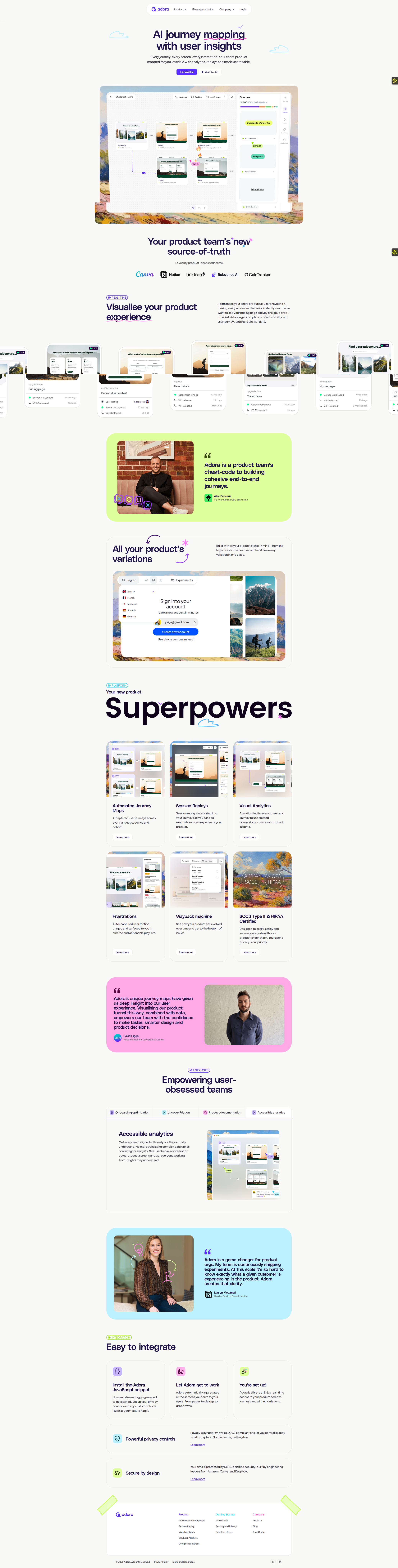
This is an example of the kind of full-page capture you are aiming for: a single, continuous image that shows the entire page from top to bottom.
Overview: How the critique engine thinks
Growth Buddy is a structured product critique engine designed to analyse individual screens or complete user journeys and surface the most likely points of confusion, hesitation, or drop-off.
It operates in two modes:
- Single Screen for isolated moments like pricing pages or CTAs.
- Journey Map for multi-step flows where momentum, reassurance, and transitions matter.
Based on screenshots you provide, it highlights the highest-impact issues limiting clarity, trust, or conversion, then delivers a prioritised set of practical improvements ranked by predictability and effort.
The output is blunt, scannable, and action-oriented, so teams can see what to fix first and ship changes with confidence.
Modes at a glance
Single Screen
Single Screen is best for a single page or moment in isolation.
Use it for:
- Landing pages
- Dashboards
- Pricing pages
- Key CTAs and hero sections
Think of Single Screen as pressure-testing whether a page earns the next click.
Journey Map
Journey Map is best for a start-to-finish path with multiple steps.
Use it when you want to understand:
- Where momentum drops
- Where reassurance is missing
- Where expectation-setting breaks between steps
Journey Map works best when you know the path you care about; the AI then uncovers friction points and bottlenecks along it.
How to use Single Screen
- Capture a full-page image or screenshot of the screen you want to analyse.
- Upload the screenshot to Growth Buddy and set MODE: SINGLE SCREEN.
- Briefly describe what the screen is meant to achieve.
- Review the results and action items.
Single Screen works best when you want sharp feedback on clarity, hierarchy, trust, or conversion within a single moment.
How to use Journey Map
- Capture each screen in the journey, in the order a user experiences them.
- Upload the screenshots sequentially and set MODE: JOURNEY MAP.
- (Optional) Add brief context:
- Journey goal
- Who the user is
- Where you suspect drop-off or hesitation
- Review the critique with attention to transitions, momentum breaks, and missing reassurance, not just individual screen issues.
Journey Map is designed to surface friction that only appears across steps, such as expectation mismatches, trust gaps between screens, or momentum loss over time.
Choosing the right mode
Use Single Screen when:
- You have one key page you care about most.
- You want to tighten messaging, hierarchy, or conversion on that screen.
- You are testing a specific variation.
Use Journey Map when:
- Users must move through multiple steps to reach value.
- You suspect the real issues live in handoffs, not just on one page.
- You want to see how motivation, clarity, and trust survive from first impression to activation.
How to prompt: principles
- Keep prompts short and factual. This tool performs best with clean inputs instead of detailed explanations.
- Always explicitly declare the mode: SINGLE SCREEN or JOURNEY MAP.
- Avoid leading the tool toward conclusions.
- If in doubt, less is more.
- Make sure you upload your screenshots or full-page images before running the critique.
Prompt templates
Single Screen prompt template
MODE: SINGLE SCREEN
Goal:
[What this screen is meant to achieve]
Context (optional):
[Who the user is or where they came from, if relevant]
Journey Map prompt template
MODE: JOURNEY MAP
Journey goal:
[What the user is ultimately trying to do]
User:
[Who the user is]
Expected behaviour:
[What you believe the user should do across the journey]
Suspected friction (optional):
[Where you think users might hesitate or drop off]
How to read the results
Growth Buddy is intentionally not designed to give subjective feedback.
Instead, it surfaces behavioural risks and opportunities that materially affect user progression and downstream business outcomes.
The output is built to help product, design, and growth teams move from observation to action without over-analysing or second-guessing.
Your job is not to agree with every point. Your job is to identify what to act on first.
Two modes, two mental models
Single Screen
Think: moment optimisation.
Use Single Screen when a page has a primary job, such as:
- Landing pages
- Onboarding screens
- Pricing pages
- Video sales letters and other high-intent moments
You are optimising for:
- Immediate insights
- Low cognitive load
- One obvious action to the next
Journey Map
Think: momentum and continuity.
Use Journey Map when:
- More than one screen is required to reach value
- Users must carry intent from step to step
- Workflows and user journeys are not occurring as intended
You are auditing whether motivation survives the handoffs.
Reading the journey overview
The journey overview evaluates the experience as a system, not a collection of screens.
It sets the context for everything that follows.
Look for:
- Where momentum slows
- Where reassurance is missing
- Where context is lost between steps
- Where excitement collapses into uncertainty
Use this section to decide where to run experiments, not where to polish endlessly.
Interpreting potential issues
Each issue explains how and why a user fails to progress. There are four key parts:
1. What’s happening
A factual description of the screen or intended behaviour. It usually singles out a distinct element or section on the page where an issue has arisen.
2. Why this is a problem
The psychological or cognitive cost placed on the user, often related to clarity, trust, effort, or friction.
3. Likely user reaction
The most probable behaviour you should expect from users. Use this as a hypothesis to validate with session replays or user journey mapping.
4. Business or conversion impact
The key metric or outcome currently being suppressed by inefficiencies. This is the justification for prioritisation.
Only the most important issues are listed. Higher-ranked issues are usually earlier in the funnel, repeated across screens, or more predictable to fix.
Interpreting ideas to improve
Ideas are ordered interventions, not generic suggestions.
Each idea is categorised as:
- Quick win: Low effort, high certainty changes such as copy, hierarchy, or CTA consistency.
- Medium lift: Structural changes that need design and engineering, such as consolidating sections or simplifying flows.
- Bigger bets: Journey or positioning changes that require planning and testing, such as full-page or full-journey redesigns.
Higher-ranked ideas are typically earlier in the funnel, repeated across screens, or more predictable to resolve. Use ranking for sequencing, not debate.
Using the output well
After reviewing a report, you should be able to answer:
- Where are users hesitating most?
- What single change would reduce doubt fastest?
- What can we ship quickly to test movement?
- What belongs on the roadmap instead?
If you cannot answer those questions, re-read the issues section before the ideas. Growth Buddy is designed to help you move from insight to action with clear, prioritised changes.
Related posts

Why We Built AI Product Insights
The story behind Adora's AI Insights, and why I think this is the future of how product teams operate.

Guide: How to audit your product journeys?
Your product is constantly evolving, and small decisions quietly add up. This is a step-by-step guide to auditing your product journeys, catching friction before it becomes churn, and keeping your whole team accountable to the end-to-end experience.

Data-driven off a cliff: why dashboards are dead
Dashboards are dead. Not because data doesn't matter. But because the way we've been accessing it was never actually built for the people making product decisions. Here's what went wrong, and what comes next.